The Mac Mini (Late 2014)
Table of Contents
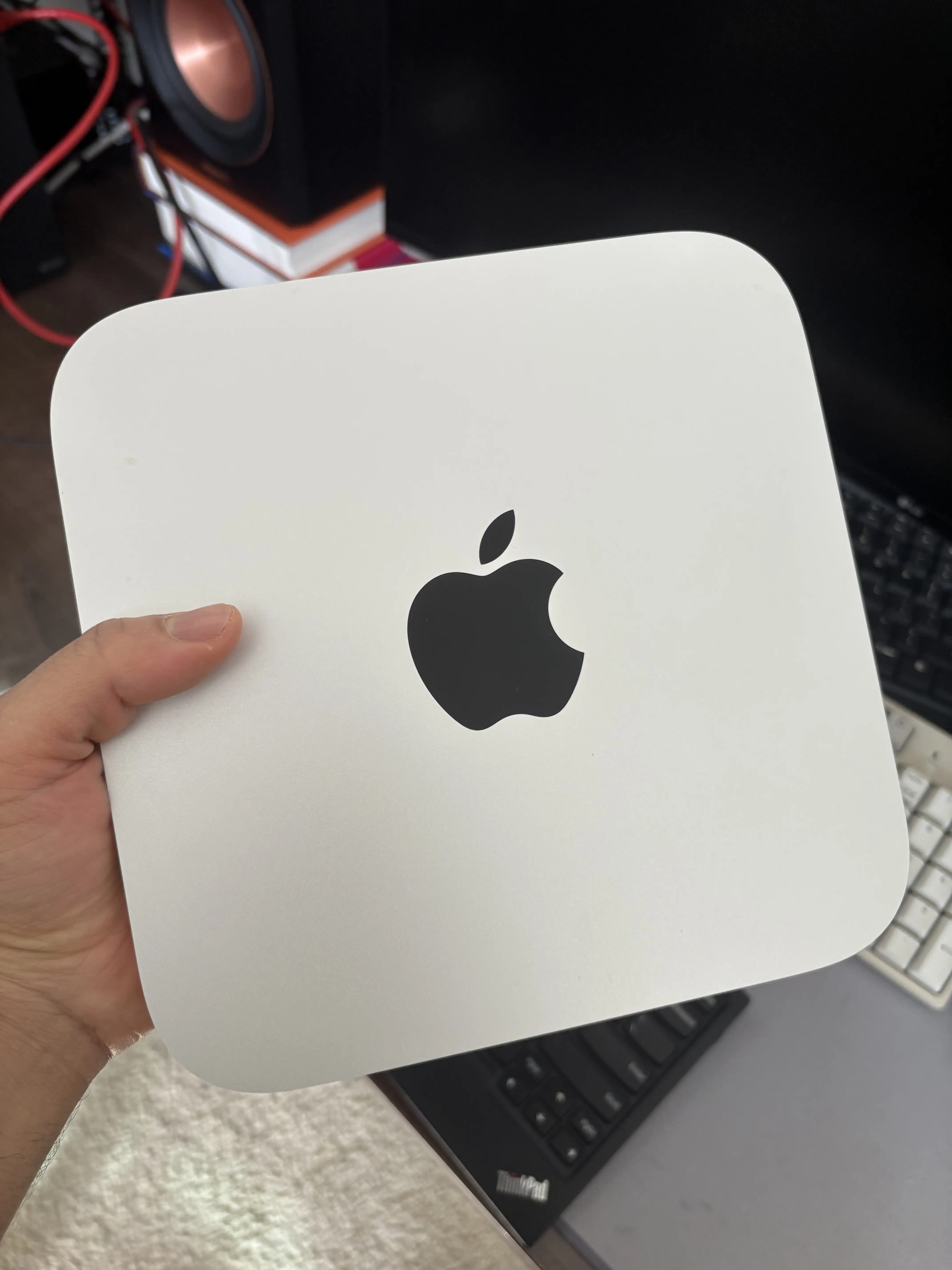
I recently purchased a used Late 2014 Mac Mini to replace my old 13-inch 2018 MacBook Pro I've been using as a BlueBubbles server. Reason being I hate that computer with a passion. These MacBooks come from the era of the god-awful butterfly keyboards that seemed to be designed to fail.
The keyboard on my MacBook Pro is basically unusable, the battery only holds charge for ~30 minutes, and the laptop runs extremely hot even when it seems to be doing nothing at all. It also crashes on occasion which makes it unreliable to use as a server for anything.
I wanted to try a Mac Mini since I've never owned one before and desparately wanted something to replace this MacBook, so I found a cheap (~$50) Mac Mini on eBay.
This Mac Mini comes with soldered RAM (either 8GB or 16GB) but upgradeable storage. I meant to get a Mac Mini with upgradeable storage and RAM, which would have been a Mac Mini Late 2012 for the most modern Mac, so I kinda screwed up, but it's not really a big deal. I probably will not be upgrading anything in this computer.
1. What's BlueBubbles?
If you don't know, BubbleBubbles is an open-source project aimed at bringing iMessage to non-Apple devices. Windows, Linux, and Android are officially supported.
I have an iPhone which I use as my primary smartphone but also a lot of Linux computers and even a couple Androids I use for screwing around. By setting up a BlueBubbles server on my Mac it allows me to send/recieve iMessages on my Linux computers and on Android. It works pretty well actually and I'm a fan.
The only catch is you need a Mac to run the server on. I've be using my old MacBook Pro for a while now but as I have already talked about it is unreliable and I hate it.
1.1. Virtualization?
There are some instructions in the offical docs for virtualizing macOS and running BlueBubbles on that. I've tried it before, but I have no interest in doing it again because virtualizing macOS on something other than macOS is a massive PITA. I would rather just pay the $50 for a cheap real Mac and have it just work.
2. Specs
| Component | Value |
|---|---|
| Processor | 2.6. GHz Intel Core i5 |
| Memory | 8 GB 1600 MHz DDR3 |
| Graphics | Intel Iris 1536 MB |
| Storage | 256 GB SSD |
| OS | macOS High Sierra |
3. Ventura (OpenCore Legacy Patcher)
I will be upgrading to Ventura since that is what BlueBubbles officially recommends. Apple does not officially support Ventura on a Mac this old so I will be using OpenCore Legacy Patcher, an amazing project allow you to bring modern macOS to older Macs.
Side note, the Mac Mini came installed with High Sierra, and boy it reminded me how much I miss the look and feel of older macOS. I'm writing this out on a MacBook Air running Tahoe and I am not a fan of Liquid Glass or all the extra unnecessary padding everything seems to have. I also dislike how boring all of the app icons look now, in Tahoe they all look the same while in High Sierra they're all allowed to be different.
I won't repeat the instructions from the official OpenCore site here so if you're doing something similar go ahead and follow the docs.
Note the version of Safari macOS High Sierra comes with is not supported by GitHub at all, to the point where I couldn't even download the OCLP app, so I had to install Firefox (ESR because modern Firefox doesn't support macOS this old either) and download the app through there.
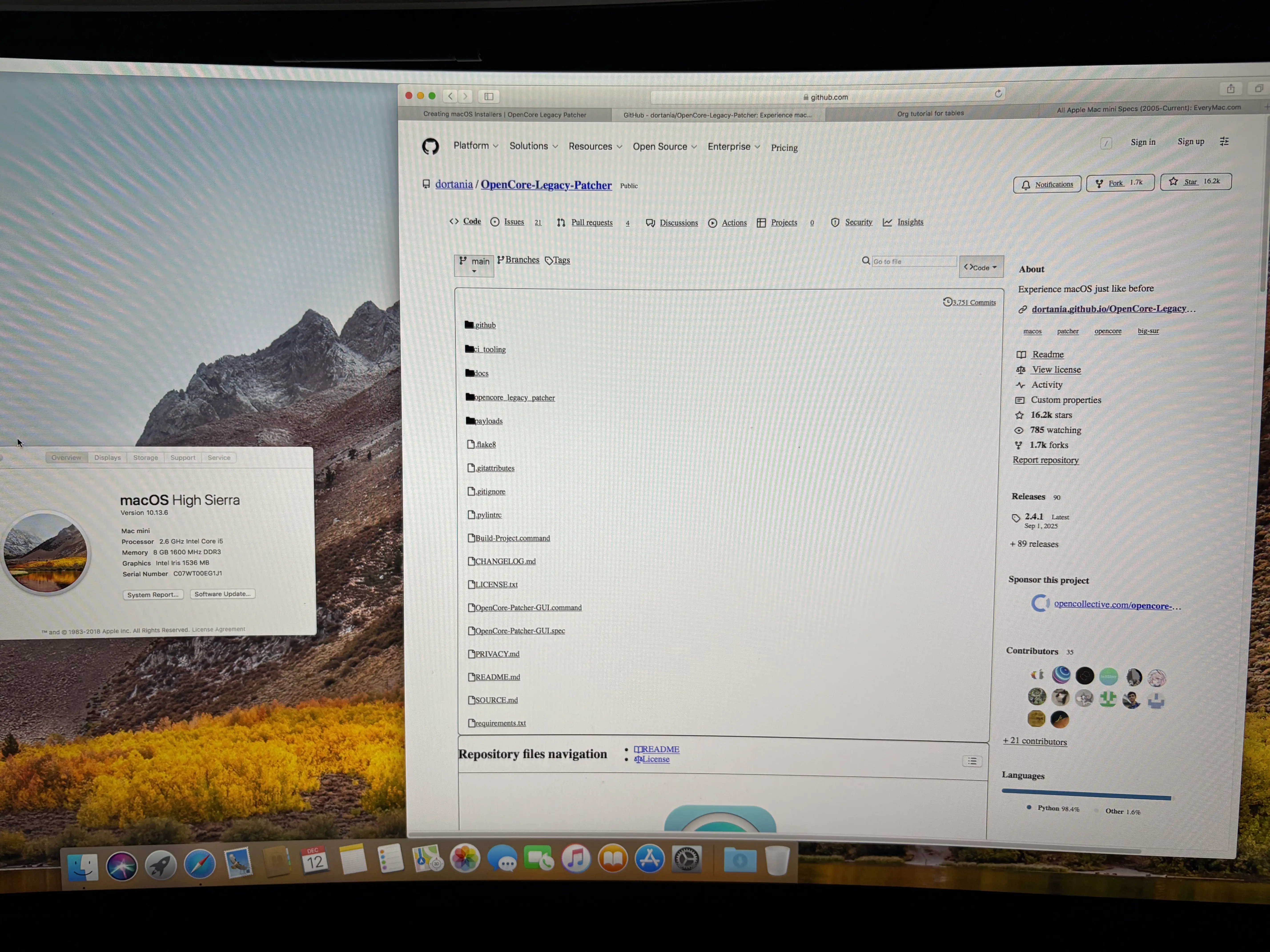
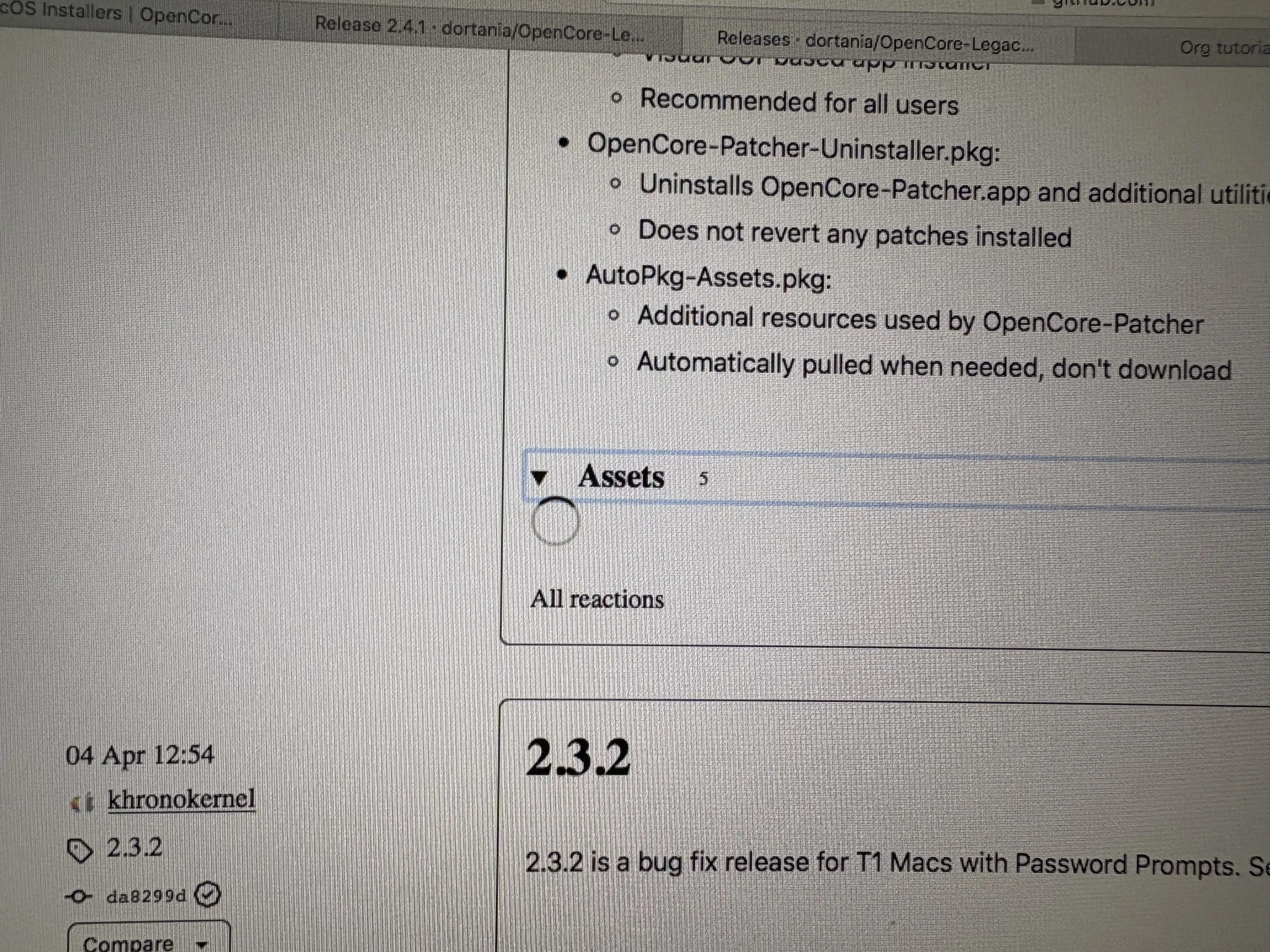
After setting up Ventura the Mac is noticeably slower, which is unfortunate. Using the System Settings app in particular is VERY slow, there is a lot of lag trying to use the searchbar. High Sierra was snappy. But it's not too big a deal since I won't be using this computer a desktop, it will just to sit in the corner and run Bluebubbles.
I've had great luck running macOS Sequoia on a Late 2012 iMac (still need to write a blog post about this), and have also tried running macOS Sequoia on an Early 2015 11-inch MacBook. But like this computer it was a bit sluggish on the MacBook Air so I ended up installing Linux on that computer.
4. BlueBubbles Migration
BlueBubbles has an official migration guide here. Basically log into your new Mac, sync all messages, then copy over all your data from your old BlueBubbles install. Then install BlueBubbles on your new Mac and it should have all your settings.
Once I did that and got the Bluebubbles server running again I shut off my old MacBook and put it on the shelf.
5. Other Stuff
Another thing I'm doing with this thing is plugging it into my reciever so I can AirPlay music from my iPhone to the Mac and out my speakers. Previously I've been using an old Android phone plugged into my reciever to stream and play digital music but this might be a little more convient.
Note that Apple seems to disable AirPlay on older devices that once supported it (BFYTW) but you can renable in with the OCLP settings by going to Advanced -> FeatureUnlock and then selecting Enabled. Then rebuild OpenCore and reboot.
I don't really know what else I could do with this thing that isn't covered by my main home server and Mac laptop. Possibly another backup location for some important data. 🤷